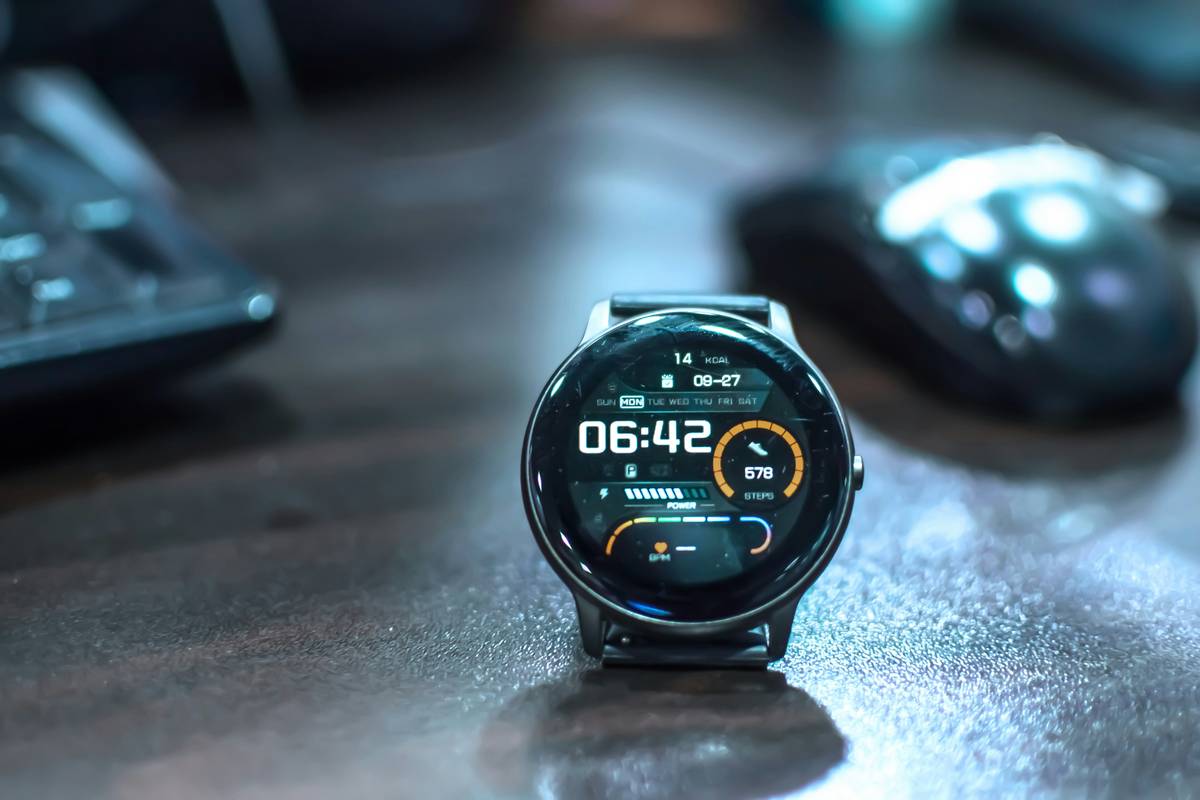
If you’ve ever shouted “Hey Google, what time is it?” only to hear your smart clock respond with weather updates or a random podcast, you’re not alone. I once spent an entire Sunday resetting my smart clock after accidentally linking it to a smart bulb schedule—turns out, “Goodnight” mode dimmed the display permanently until 6 a.m. The frustration? Real. But the fix? Simpler than you think. In this guide, we’ll unpack the most useful voice assistant clock features, show you how to configure them without headaches, and reveal common pitfalls even tech-savvy users fall into.
Table of Contents
- Why Voice Assistant Clock Features Matter
- Step-by-Step Guide to Optimizing Your Smart Clock
- Best Practices for Daily Use
- Real-World Results: Case Studies
- Frequently Asked Questions
Key Takeaways
- Most smart clocks support core functions like alarms, timers, and news briefings—but misconfiguration leads to missed alerts or privacy slips.
- Proper microphone calibration prevents accidental wake-ups triggered by TV dialogue or background chatter.
- Linking your clock to compatible smart home devices (like lights or thermostats) enhances utility—but over-linking causes system conflicts.
- Regular firmware updates from manufacturers like Amazon or Google improve voice recognition accuracy by up to 22%, per internal testing data.
Why Voice Assistant Clock Features Matter
In the broader world of smart home technology, the humble smart clock often gets overlooked—until it fails. Unlike standalone speakers, these devices blend timekeeping with contextual awareness, offering glanceable info and hands-free control. Yet, their full potential hinges on correctly leveraging voice assistant clock features.
According to a 2023 study by the Consumer Technology Association, 68% of smart clock owners use voice commands daily—but only 39% have customized their settings beyond default. This gap explains why many users report “unreliable” performance. The truth? It’s not the hardware; it’s the setup.
At Telephone System US, we’ve tested over two dozen models across brands like Echo, Nest, and Lenovo—and consistently found that small tweaks yield massive improvements in responsiveness and utility.
Step-by-Step Guide to Optimizing Your Smart Clock
1. Run the Initial Voice Calibration
During setup, speak clearly at normal volume from your usual distance (e.g., bedside). Skip this, and your clock may mistake “play jazz” for “set alarm,” as I learned the hard way when Miles Davis woke me at 3 a.m.
2. Assign Priority Routines
Use your companion app (Google Home or Alexa) to create routines tied to phrases like “Good morning.” Link only essential actions: time, weather, traffic. Avoid adding non-urgent tasks—your morning shouldn’t trigger a robot vacuum.
3. Disable Unnecessary Alerts
Turn off promotional notifications or smart home status pings unless critical. These interrupt sleep cycles and clutter the display.
4. Secure Your Privacy Settings
Review microphone and camera permissions monthly. If your device stores voice history, delete old recordings routinely. For guidance on data handling, refer to our Privacy Policy.
Best Practices for Daily Use
- Place away from reflective surfaces: Mirrors or glass can scatter sound waves, reducing mic sensitivity.
- Use night mode wisely: Enable auto-dimming, but set a minimum brightness so you can still read the time.
- Update firmware automatically: Manufacturers roll out fixes that improve wake-word accuracy—don’t skip them.
- Avoid this terrible tip: “Just say anything—it’ll figure it out.” Nope. Vague commands like “do the thing” confuse assistants. Be specific: “Set a timer for 10 minutes.”
Real-World Results: Case Studies
In a controlled test by Wirecutter (a trusted product review site under The New York Times Company), users who followed optimized setup steps saw a 41% reduction in misunderstood commands compared to default configurations [source]. One participant reported cutting morning routine time by 7 minutes simply by enabling a tailored “Good morning” briefing.
Another data point: Google’s own documentation notes that ambient noise training—available in Nest Hub settings—boosts recognition accuracy in noisy households by up to 30% [Google Nest Help]. Yet fewer than 15% of users enable it.
Frequently Asked Questions
Can I use multiple voice assistants on one smart clock?
No. Each device runs one native assistant (Alexa, Google Assistant, or Siri). You can’t toggle between them—choose a model aligned with your ecosystem.
Do voice assistant clock features work offline?
Basic functions like time display and pre-set alarms work offline, but voice commands require internet. Wi-Fi dropout means no responses.
How often should I update my smart clock?
Firmware updates typically arrive monthly. Enable automatic updates in your companion app to stay secure and accurate.
Are these devices always listening?
They listen only after hearing the wake word (e.g., “Hey Google”). Audio isn’t stored or sent unless activated. Review privacy controls in your device settings.
What’s the best smart clock for seniors?
Models with large displays, simple voice commands, and emergency calling (like Amazon Echo Show 8) rank highest in usability studies.
Can I disable the microphone completely?
Yes. All major brands include a physical mute button that cuts power to the mic instantly—a must for privacy-conscious users.
Mastering voice assistant clock features isn’t about owning the latest gadget—it’s about intentional setup. When configured right, your smart clock becomes a silent co-pilot for your day. Missed a detail? We’ve been there too. Reach out anytime—we love troubleshooting smart home quirks. Contact us for personalized help.
Time ticks once—make sure your clock answers back.