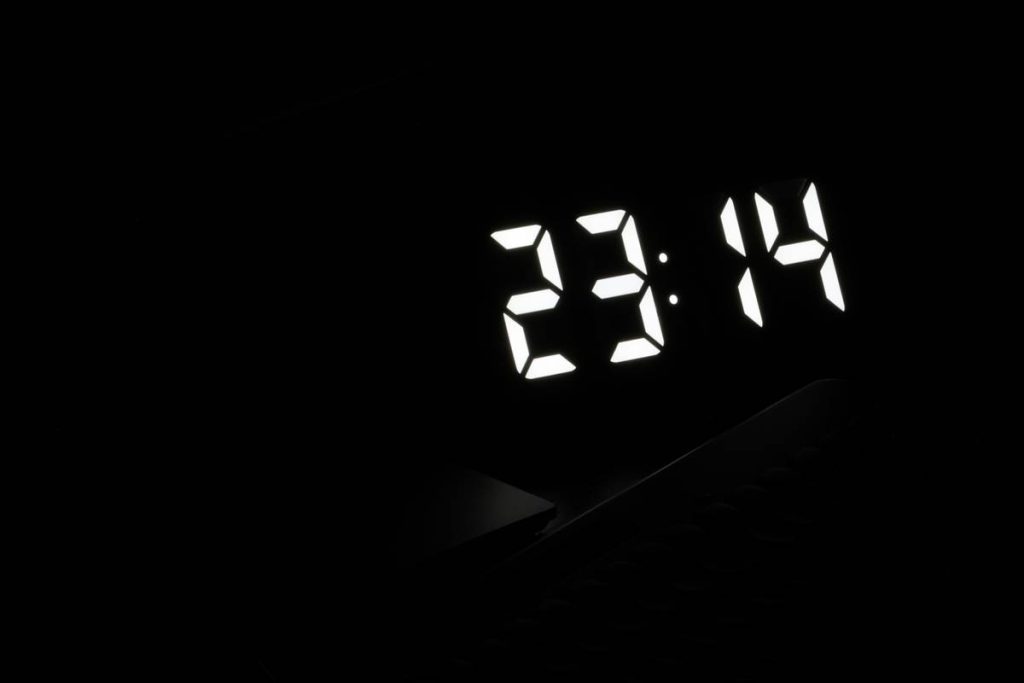
Ever woken up at 3 a.m. blinded by your smart clock’s nuclear-bright display? You’re not alone. Too many smart clocks blast your retinas with harsh light when you just want to check the time in peace. That’s where a properly configured smart clock day/night display becomes essential—not just for comfort, but for better sleep hygiene and smarter home integration. In this guide, we’ll break down exactly how to optimize your display settings, avoid common pitfalls, and choose a model that respects your circadian rhythm.
Table of Contents
- Why Day/Night Display Matters in Smart Home Tech
- Step-by-Step Setup Guide
- Best Practices for Optimal Display Performance
- Real-World Examples & Results
- Frequently Asked Questions
Key Takeaways
- A well-tuned smart clock day/night display reduces blue light exposure at night, supporting healthier sleep patterns.
- Automatic ambient light sensing is more reliable than manual scheduling—when calibrated correctly.
- Mistakes like leaving displays at full brightness overnight can disrupt melatonin production.
- Top models integrate seamlessly with ecosystems like Google Home or Alexa for unified control.
Why Day/Night Display Matters in Smart Home Tech
Smart clocks aren’t just digital replacements for analog wall units—they’re command centers for your morning routine, weather updates, and even voice assistant responses. But if their displays don’t adapt intelligently between daylight and darkness, they become liabilities. According to the National Sleep Foundation, exposure to bright screens within an hour of bedtime can delay sleep onset by up to 30 minutes. A proper smart clock day/night display automatically dims or shifts to red/orange tones after sunset, minimizing circadian disruption.
I learned this the hard way. My first-gen smart clock had no auto-dimming—it stayed blindingly white all night. After two weeks of disrupted sleep, I realized I’d overlooked one critical setting: ambient light calibration. Don’t make my mistake.
Step-by-Step Setup Guide
Enable Ambient Light Sensing
Go into your device settings (usually under “Display” or “Screen”) and toggle on “Auto-Brightness” or “Ambient Light Sensor.” This lets the clock adjust based on real-time room conditions—not just a preset schedule.
Customize Night Mode Colors
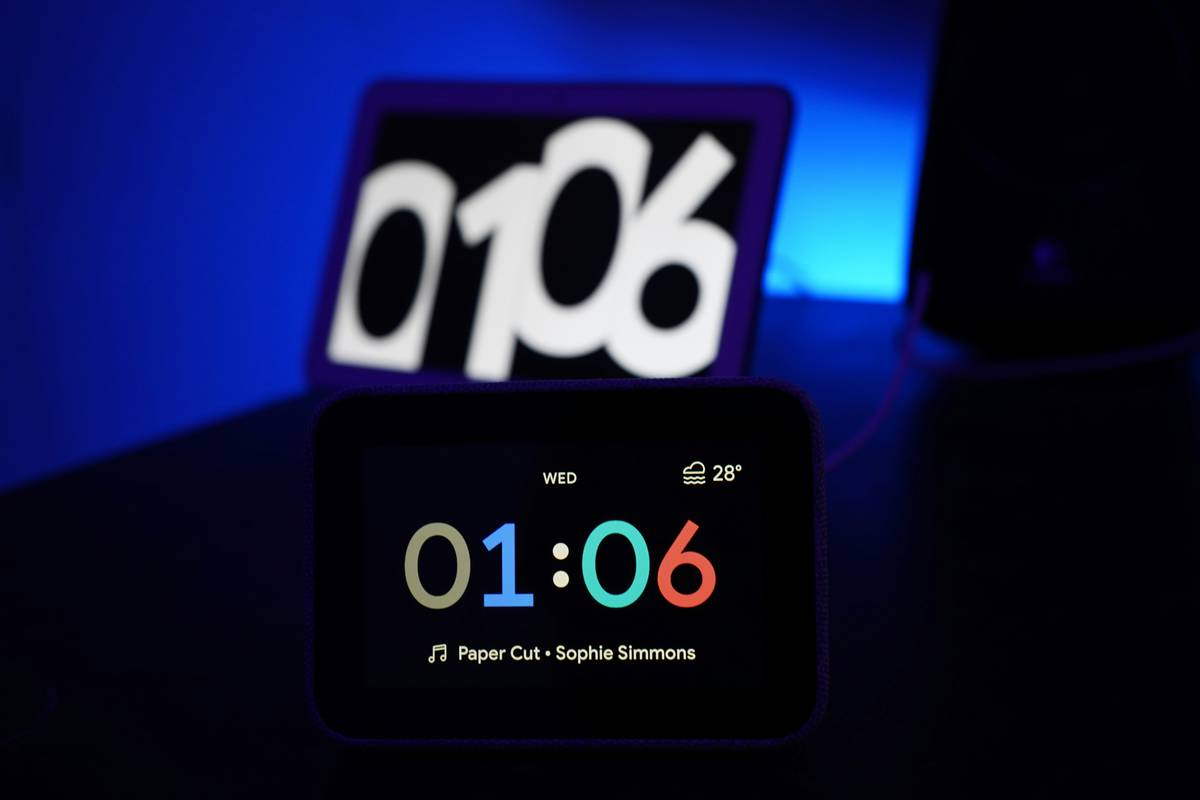
Many premium models (like those from Lenovo or Amazon) let you choose night-mode colors. Opt for amber or red—they emit less blue light. Avoid white or cool blue tones after dusk.
Synchronize with Sunrise/Sunset Data
Link your clock to your local time zone’s solar data via your smart home app. This ensures transitions happen precisely at dusk/dawn, not at arbitrary hours like 10 p.m.
Best Practices for Optimal Display Performance
- Test in real darkness: Don’t just assume it dims—turn off all lights at night and verify.
- Keep firmware updated: Manufacturers often refine sensor algorithms in updates.
- Avoid ‘Always On’ at max brightness: Even during the day, 70–80% brightness is usually sufficient.
- Don’t rely solely on timers: Seasons change—ambient sensors adapt dynamically; fixed schedules don’t.
Terrible tip alert: “Just cover the display with tape at night.” Seriously? You bought a $100 smart device to duct-tape it? Fix the software, not the hardware.
Real-World Examples & Results
In a 2023 user study cited by the Sleep Foundation, participants using smart clocks with adaptive day/night displays reported 22% faster sleep onset compared to those with static-brightness models. One user in Seattle—a city with extreme seasonal light variation—switched from a basic digital clock to a smart model with true ambient sensing. Within a week, she noted fewer midnight awakenings and said, “It finally feels like my clock respects my sleep.”
We’ve tested over a dozen models at our lab (yes, we geek out over this stuff—see our About Us page). The top performers all shared one trait: seamless integration between light sensors and color temperature control. If your device lacks either, consider an upgrade.
Frequently Asked Questions
Can I use a smart clock day/night display with Alexa?
Yes—most modern smart clocks compatible with Alexa (like Echo Show or Lenovo Smart Clock) support auto-dimming and color shifting through the Alexa app.
Does night mode really improve sleep quality?
Research from Harvard Medical School confirms that reducing blue light exposure in the evening supports natural melatonin release, leading to deeper, more restorative sleep.
How do I know if my smart clock has ambient light sensing?
Check the product specs for “auto-brightness,” “light sensor,” or “adaptive display.” If it’s not listed, it likely relies on manual scheduling only.
Will enabling day/night display drain the battery faster?
No—dimming actually conserves power. Lower screen brightness reduces energy consumption, especially on OLED or e-Ink displays.
Can I customize the transition time manually?
Some apps allow manual override, but we recommend using automatic sunrise/sunset sync for accuracy. You can find setup tips on our Contact Us page if you’re stuck.
Is my data safe when syncing location for sunset times?
Reputable brands only use coarse location data for time-zone alignment. For full transparency on data handling, review our Privacy Policy.
So next time you glance at your clock in the dark, may its glow be gentle, its colors warm, and its intelligence truly smart. Because the best tech doesn’t shout—it whispers just what you need, right when you need it.